


Description
In this beginner level assignment, students create a colorful Grocery List in Excel that contains the SUM and AutoSum functions. Students will also learn to create formulas to solve slightly more complex math problems involving multiplication. Formatting skills are also enhanced here as the exercise requires the creation of headings, the formatting of shapes, the use of borders, as well as different font sizes and colors.
This lesson can be used in other versions of Excel and is a classroom tested exercise. I usually give this assignment within the first couple of classes of an Excel unit, after having covered basic data entry.
Please feel free to contact me with questions or comments regarding this assignment! I hope that you find it useful and I look forward to hearing from you.
Included in this package:
- a .pdf instruction file (not much step by step hand holding in this one)
- a .pdf teacher instruction file (lots of step by step and screenshots. Depending on the class/level this is a good option)
- an image of an orange that is used in the Grocery List banner
- a sample Excel answer file
- a demo Excel file that can be used as a good starting point for your teaching. It has the data entry completed but none of the formatting or math.
Tips:
- Take the time to do one yourself prior to presenting to the students so you are familiar with the steps.
- I recommend you start by opening the demo Excel file and then present all of the math and formatting.
- After that, students can be given the instructions and off they go!
Others you might like:
Excel 2010 Tutorial - Using Sparklines to graph data trends
Excel 2010 Tutorial - Intro to Excel, data entry and formatting
Excel 2010 Tutorial - NBA stats using the AVERAGE math function
This lesson can be used in other versions of Excel and is a classroom tested exercise. I usually give this assignment within the first couple of classes of an Excel unit, after having covered basic data entry.
Please feel free to contact me with questions or comments regarding this assignment! I hope that you find it useful and I look forward to hearing from you.
Included in this package:
- a .pdf instruction file (not much step by step hand holding in this one)
- a .pdf teacher instruction file (lots of step by step and screenshots. Depending on the class/level this is a good option)
- an image of an orange that is used in the Grocery List banner
- a sample Excel answer file
- a demo Excel file that can be used as a good starting point for your teaching. It has the data entry completed but none of the formatting or math.
Tips:
- Take the time to do one yourself prior to presenting to the students so you are familiar with the steps.
- I recommend you start by opening the demo Excel file and then present all of the math and formatting.
- After that, students can be given the instructions and off they go!
Others you might like:
Excel 2010 Tutorial - Using Sparklines to graph data trends
Excel 2010 Tutorial - Intro to Excel, data entry and formatting
Excel 2010 Tutorial - NBA stats using the AVERAGE math function
Report this resource to TPT
Reported resources will be reviewed by our team. Report this resource to let us know if this resource violates TPT's content guidelines.
Excel 2010 Tutorial - Creating a Grocery List using AutoSum function, formulas

Cluney's Classroom
464 Followers
FREE
Highlights
Digital downloads

Grades
7th - 12th

Subjects
Tags
Teaching Duration
90 minutes
Save even more with bundles
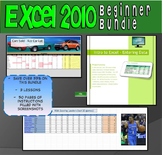
This 3 lesson bundle is aimed at middle school to high school students. It provides engaging, ready to go beginner to intermediate level activities for your students. It is priced to save you over 33% off buying each of the products individually. Note that this will be a growing bundle, so buy n
Price $8.10Original Price $9.00Save $0.90
4
Description
In this beginner level assignment, students create a colorful Grocery List in Excel that contains the SUM and AutoSum functions. Students will also learn to create formulas to solve slightly more complex math problems involving multiplication. Formatting skills are also enhanced here as the exercise requires the creation of headings, the formatting of shapes, the use of borders, as well as different font sizes and colors.
This lesson can be used in other versions of Excel and is a classroom tested exercise. I usually give this assignment within the first couple of classes of an Excel unit, after having covered basic data entry.
Please feel free to contact me with questions or comments regarding this assignment! I hope that you find it useful and I look forward to hearing from you.
Included in this package:
- a .pdf instruction file (not much step by step hand holding in this one)
- a .pdf teacher instruction file (lots of step by step and screenshots. Depending on the class/level this is a good option)
- an image of an orange that is used in the Grocery List banner
- a sample Excel answer file
- a demo Excel file that can be used as a good starting point for your teaching. It has the data entry completed but none of the formatting or math.
Tips:
- Take the time to do one yourself prior to presenting to the students so you are familiar with the steps.
- I recommend you start by opening the demo Excel file and then present all of the math and formatting.
- After that, students can be given the instructions and off they go!
Others you might like:
Excel 2010 Tutorial - Using Sparklines to graph data trends
Excel 2010 Tutorial - Intro to Excel, data entry and formatting
Excel 2010 Tutorial - NBA stats using the AVERAGE math function
This lesson can be used in other versions of Excel and is a classroom tested exercise. I usually give this assignment within the first couple of classes of an Excel unit, after having covered basic data entry.
Please feel free to contact me with questions or comments regarding this assignment! I hope that you find it useful and I look forward to hearing from you.
Included in this package:
- a .pdf instruction file (not much step by step hand holding in this one)
- a .pdf teacher instruction file (lots of step by step and screenshots. Depending on the class/level this is a good option)
- an image of an orange that is used in the Grocery List banner
- a sample Excel answer file
- a demo Excel file that can be used as a good starting point for your teaching. It has the data entry completed but none of the formatting or math.
Tips:
- Take the time to do one yourself prior to presenting to the students so you are familiar with the steps.
- I recommend you start by opening the demo Excel file and then present all of the math and formatting.
- After that, students can be given the instructions and off they go!
Others you might like:
Excel 2010 Tutorial - Using Sparklines to graph data trends
Excel 2010 Tutorial - Intro to Excel, data entry and formatting
Excel 2010 Tutorial - NBA stats using the AVERAGE math function
Report this resource to TPT
Reported resources will be reviewed by our team. Report this resource to let us know if this resource violates TPT's content guidelines.
Reviews
All verified TPT purchases
I used this as a pre-test to see if incoming students were able to find their way around Excel. It was a great way to see if they had basic Excel skills.
My PFL Class has been asking me for something like this, I am so happy I stumbled across this wonderful resource!
I’m glad you found it useful Charmin!
Perfect activity for my students to complete to practice their Excel skills.
Thank you for the feedback!
Questions & Answers
Loading
Loading
